
login to your blogger account then open the Layout menu and select Edit HTML.
Step 1:
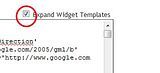
Make sure to check the “expand widget templates”
Step 2:
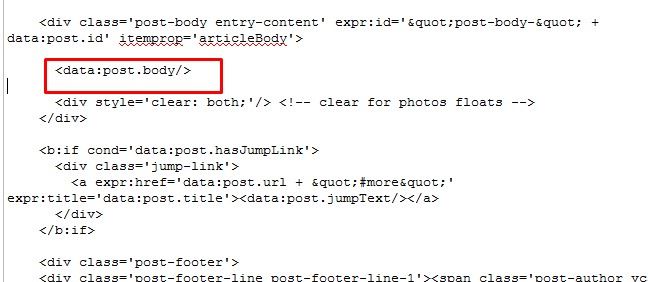
Search for
Step 3:
Replace that code with the code below
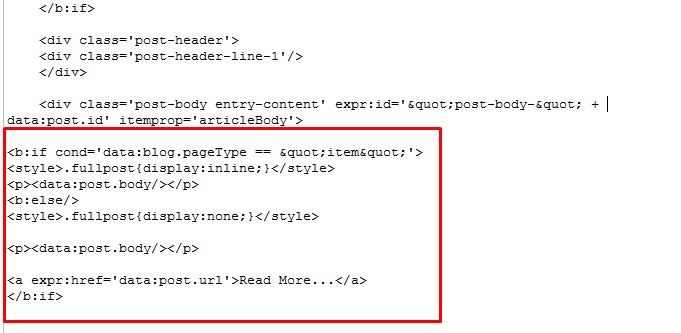
*you can change the words " Read More..." according to what you want*
Step 5:
Save the template. Then go to Settings. select Formatting.
In the Post Template box enter the following code:
and then save.
How to Post:
When posting, click Edit HTML (not Compose). It will automatically look like the following code:
put the part of the post that you want it to appears at your main page (before the words "Redmore") above this code: <span class="fullpost">
and put the rest of the post between this code <span class="fullpost"> and </span>.
all the steps are completed. good luck ;)
source: trik-tips

No comments:
Post a Comment